
Procreate Gestures Every Artist Should Know
If you're new to Procreate, knowing a few gestures will save you a ton of time. You don't need to tap through menus to find everything. A lot of Procreate's most useful tools are hiding within simple gestures! And these simple gestures will become automatic once you practice them a few times.
Here are the ones I think every beginner should know, because they'll speed up your workflow so much.
Memorize these Procreate gestures today. You'll be glad you did. :)
Long Hold to Pick Up a Color from Your Canvas
Ever want to grab an exact color you already painted? Or maybe sample a color from a photo?
All you have to do is long-press on any spot on your canvas to sample that color instantly.

⭐ You will have to set this up in your settings first, though! To make this work, adjust your settings by going to: Actions (the wrench icon) > Prefs > Gesture Controls > Eyedropper and toggle Touch and Hold ON.
While you're in there, you can also adjust the Delay so the hold is as short or as long as you want it to be. (I like to keep mine really short (0.10s) so I can sample and pick up a color quickly.)
⭐ And here's an important 2026 update: If your Eyedropper suddenly seems to be picking up colors only from your active layer, there's a way to toggle that off. While holding the Eyedropper with one finger, tap the canvas with a second finger to switch to “Picking color from canvas”. This will help you sample a color from the entire canvas, not just the layer you're currently on.
Once you choose a mode, you can continue using the Eyedropper normally with one finger.
QuickShape - My Favorite Gesture for Horizontal Lines
Draw a line and hold your pencil tip on the canvas at the end for just a beat. Procreate will snap it into a clean, smooth line.
Here's how I typically use it in my process to make it a perfect horizontal:
Draw a horizontal line.
Hold at the end for a beat to automatically straighten up your line.
Then tap with your opposite index finger while still holding your pencil down.

When you tap your opposite index finger, if you draw a line close to a horizontal line, it will snap to a perfect horizontal! I love this! Because dropping a perfectly horizontal line helps me compare my reference image directly to my painting, since they're perfectly side by side. Learn how to set up your canvas like this in this tutorial.
You can also tick this line up and down in 15° increments.

Two-Finger Tap to Undo
Made a mark you don't like? Or a lot of marks? lol Tap the canvas with two fingers to undo it.

You can also two-finger tap and hold to keep undoing rapidly in quick succession.
Three-Finger Tap to Redo
Want to redo a mark? Simply tap three fingers to bring your marks back.

Three-Finger Swipe Down for Cut, Copy, and Paste
Swipe down on the canvas with three fingers, and a little menu pops up with Cut, Copy, Paste, and more options. Once you know this one, you'll use it all the time!

Two-Finger Swipe Right to Alpha Lock a Layer
Swipe right across a layer with two fingers to turn on Alpha Lock. This locks the transparent pixels on that layer so you can only paint where you've already painted.
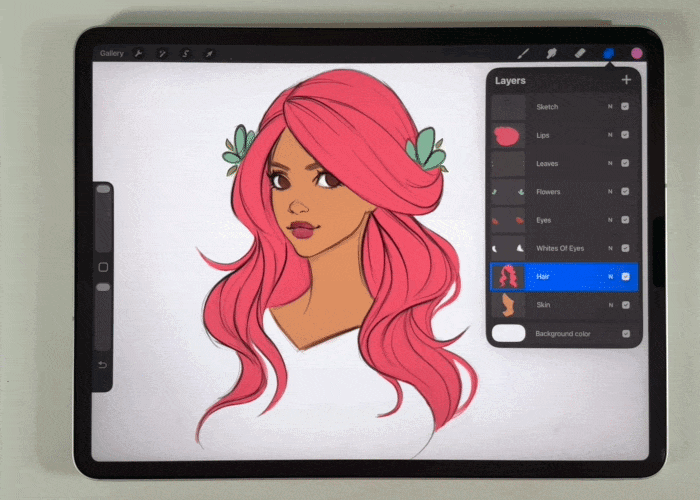
This is super useful for shading, adding texture, adding lighting, even changing colors entirely. All without going outside your lines.

Pinch Layers Together to Merge Them Into One
In the Layers panel, pinch two or more layers together to merge them into one. Simple and satisfying. 😄

Get to know these gestures and you'll really speed up your Procreate workflow.
I promise, once your brain has a little time to memorize them, they become second nature.
You might even catch yourself two-finger tapping when you're working traditionally...
I know I have!
Want to learn even more? Check out the Procreate Handbook for the full list of gestures.
🎁 Want Free Procreate Brushes to Practice With? 🖌️
Now that you've got these gestures down, grab my free Procreate brush set and put them to work! Grab your free brushes here →

